How to Export MongoDB Results to JSON, CSV, or Excel
You have found the records you need in MongoDB. Now you need to send them to a colleague, inspect them in a spreadsheet, or use them in another application. Saving a file sounds straightforward. But one choice can change the entire result: are you exporting the full collection, every record that matches your query, or only the page currently displayed? An export can look correct and still leave out most of the records you intended to share. This blog will help you choose the scope, select the fields, save your file, follow its progress, and check the actual output. Along the way, you’ll learn when JSON, CSV, and Excel are useful, and how to avoid a misleading handoff.
Start with the question your export needs to answer
Before opening the export options, decide what the recipient needs.
Suppose an operations colleague asks for completed orders from a particular region. Sending the whole orders collection creates extra work. Sending the first visible page may leave them with an incomplete picture.
The useful export contains the intended records and the fields needed to interpret them.
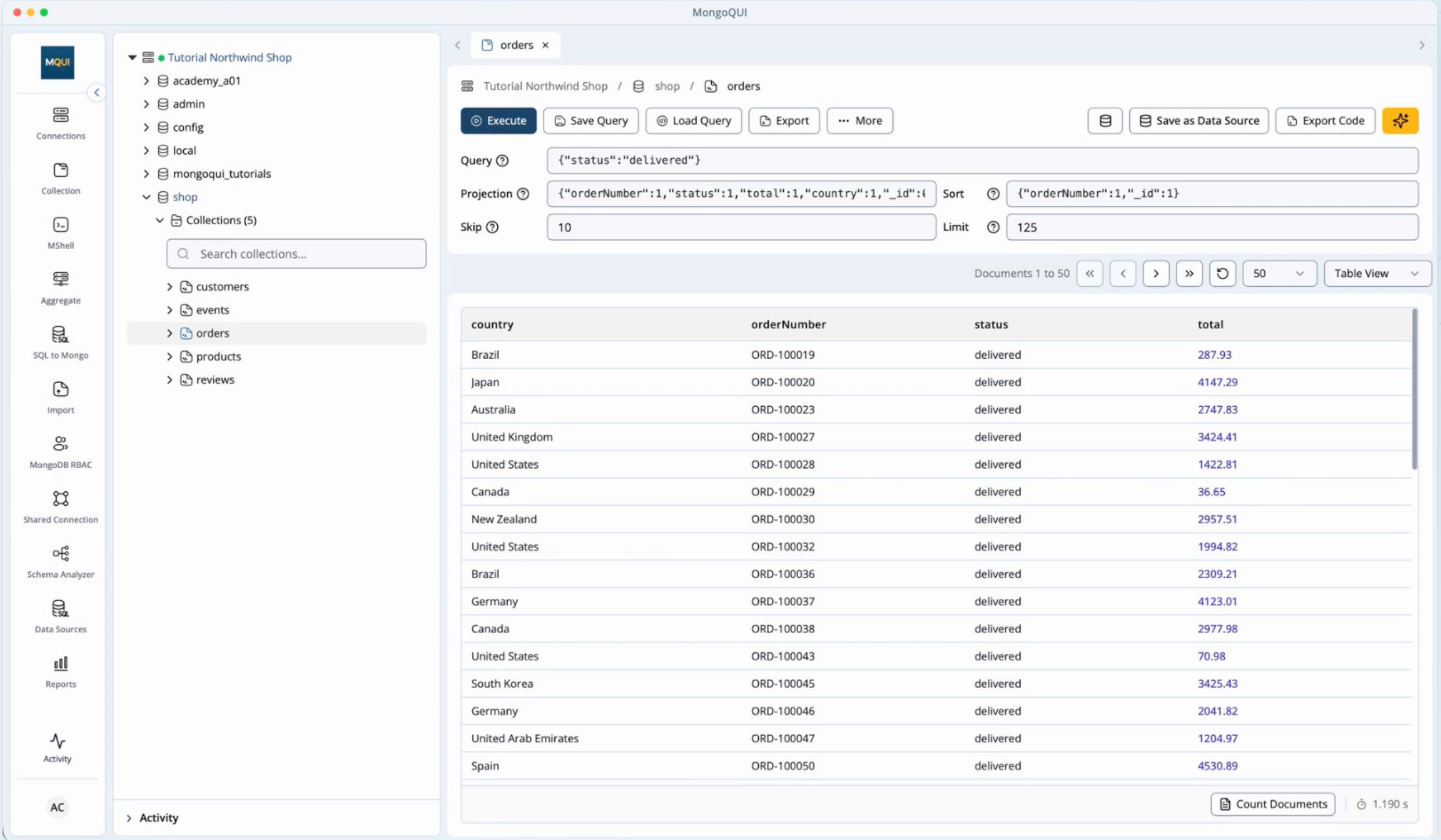
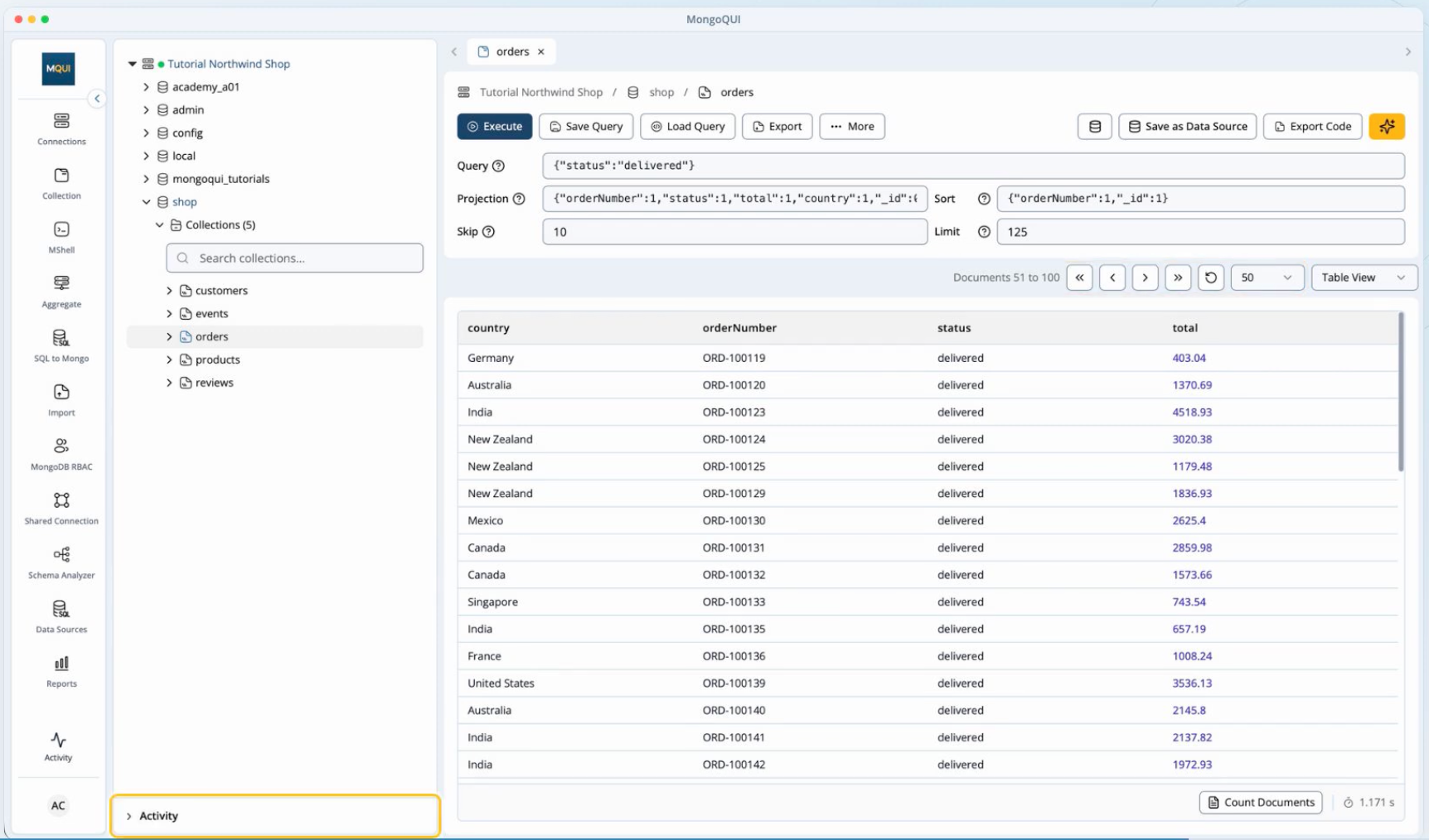
MongoDB database tools help you explore and filter data, but the quality of the resulting file still depends on those decisions. In MongoQUI, start by opening the relevant collection, applying your filter, and executing it. Inspect the returned records before moving to the Export tab.
If you are following this as a MongoDB query tutorial, keep the first filter simple. Confirm that the results match your question before adding more conditions.
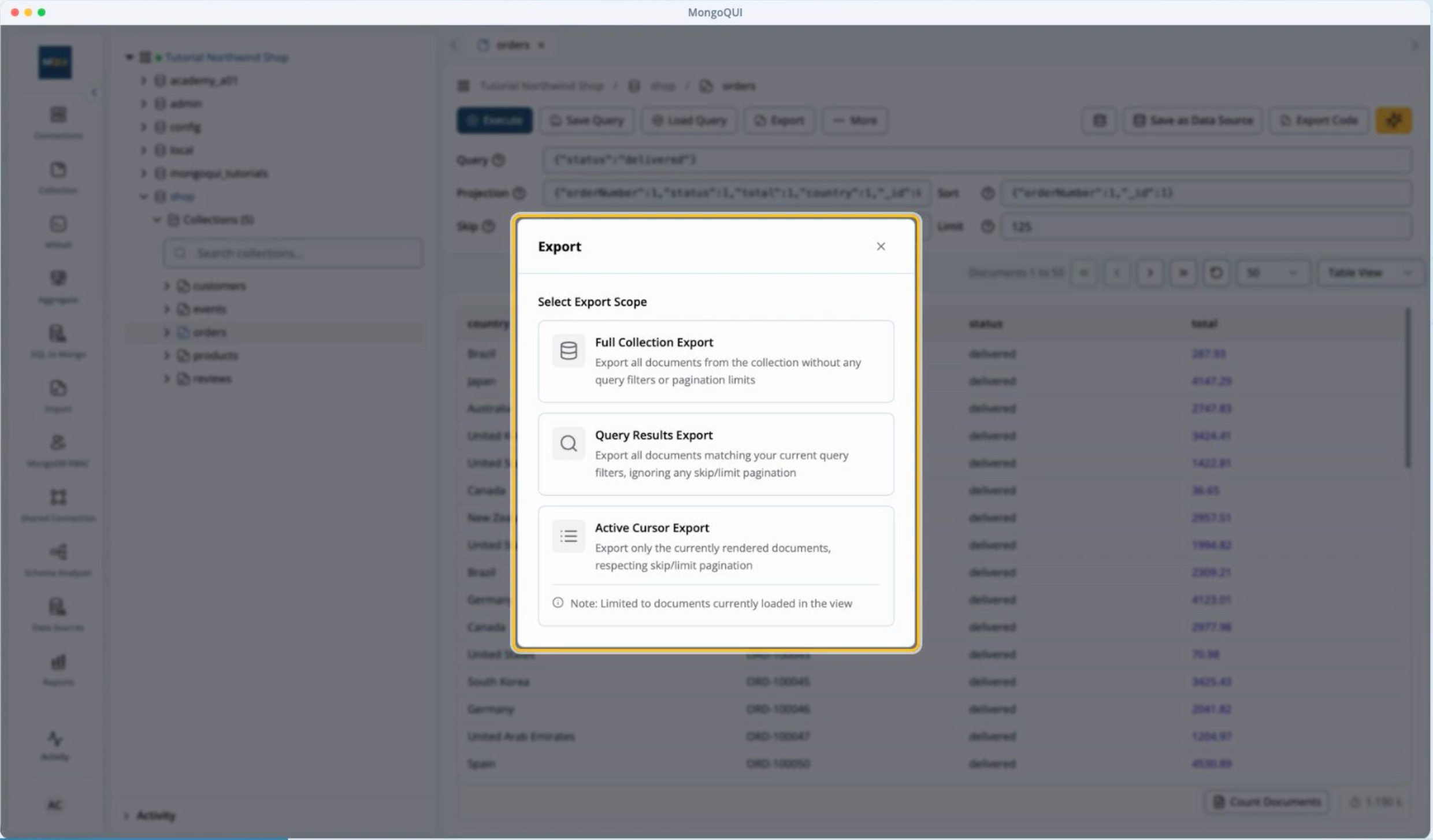
1. Choose the right export scope
Treat this as the most important decision in the workflow.
Scope | What you are choosing | When it is useful |
|---|---|---|
Full collection | Export the collection rather than only the filtered view | You need a collection-wide extract |
All matching query results | Export the records matching the executed query | You need the complete answer to a filtered question |
Current page | Export the records currently loaded in the view | You need a small sample or the specific page you are reviewing |
For example, imagine that your filter matches 1,200 records while the current page contains 50. Exporting that page produces a 50-record snapshot. It does not represent all 1,200 matches. These numbers are illustrative; use your own result count when checking an export.
Choose all matching results when the recipient expects the complete filtered dataset. Choose the current page when a limited sample is intentional, and make that limitation clear when sharing the file.
If you choose the full collection, check that the broader scope is really what you want. A filter visible in the editor should not be your only evidence of what the export will contain.
2. Select the fields the recipient needs
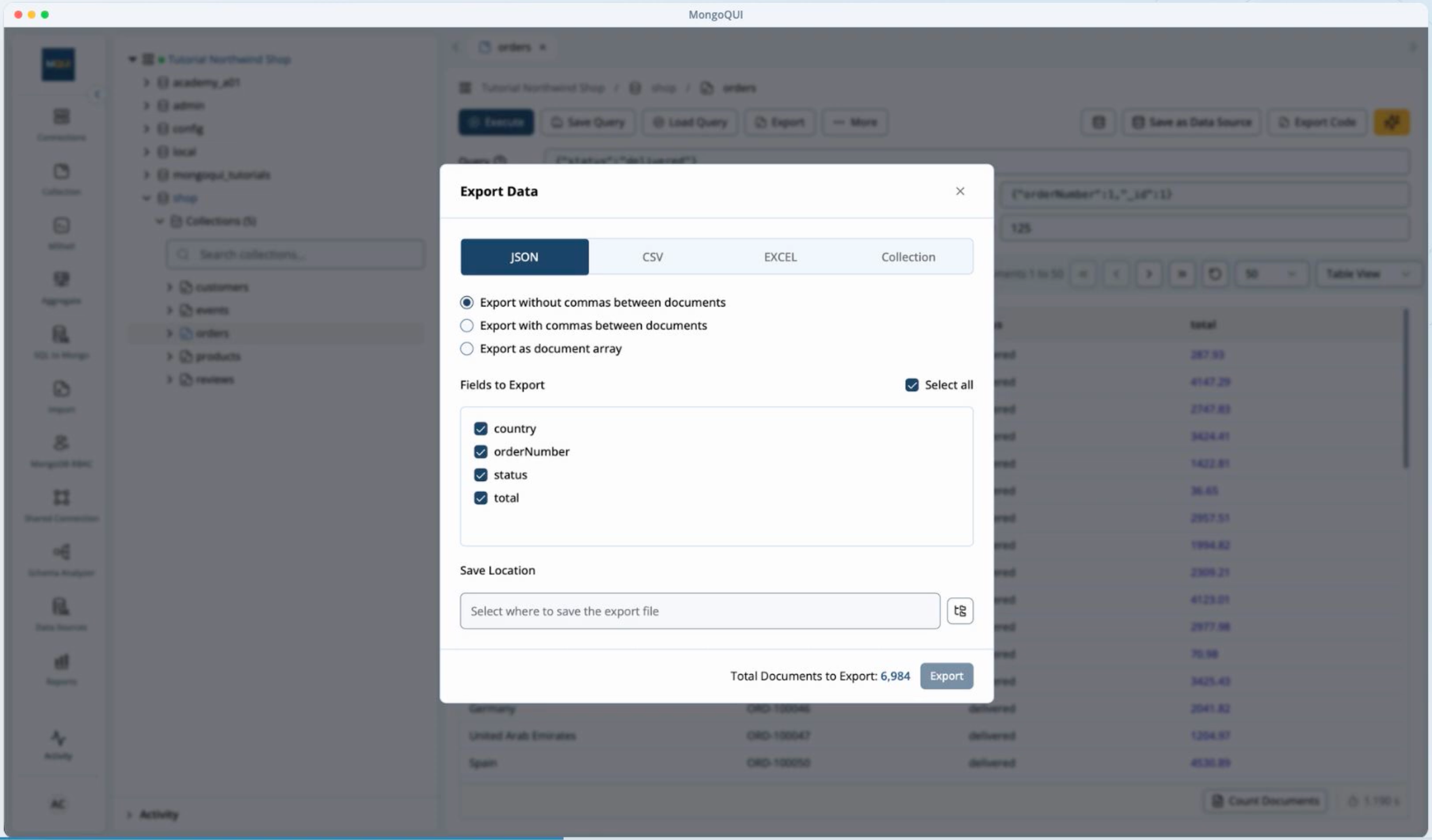
Next, choose which fields to include. MongoQUI’s export options support field selection, so you can shape the file around its purpose.
For an order review, useful fields might include an order identifier, status, date, region, and total. A recipient checking totals may have little use for internal processing metadata or unrelated customer details.
Keep enough context to make each record understandable. An amount without an identifier or date can be difficult to reconcile later.
Field selection also deserves attention when preparing spreadsheet output. If your documents contain nested objects or arrays, inspect how those values appear in the exported file before assuming that the columns are ready for analysis.
3. Pick JSON, CSV, or Excel
Choose the format based on what happens after the export.
JSON: for working with document-shaped data
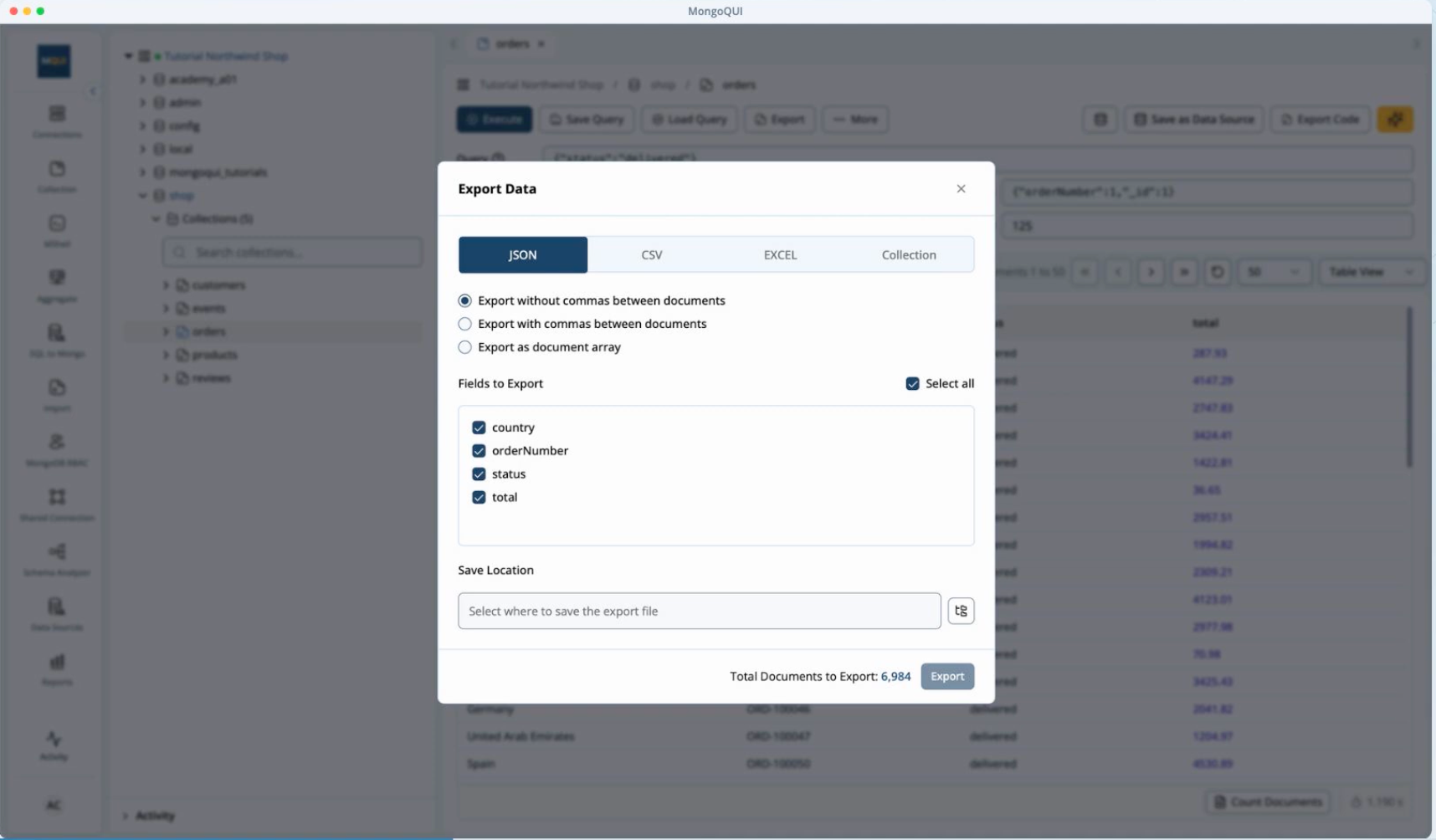
JSON is useful when the next step involves code, another application, or inspecting document structure. MongoQUI supports JSON export options, including an array format.
Check the structure your receiving application expects. A JSON array and individual JSON objects are different arrangements, even when they contain the same records.
In the tutorial, the JSON workflow follows field selection, then moves to export progress and file verification.
CSV: for a portable table
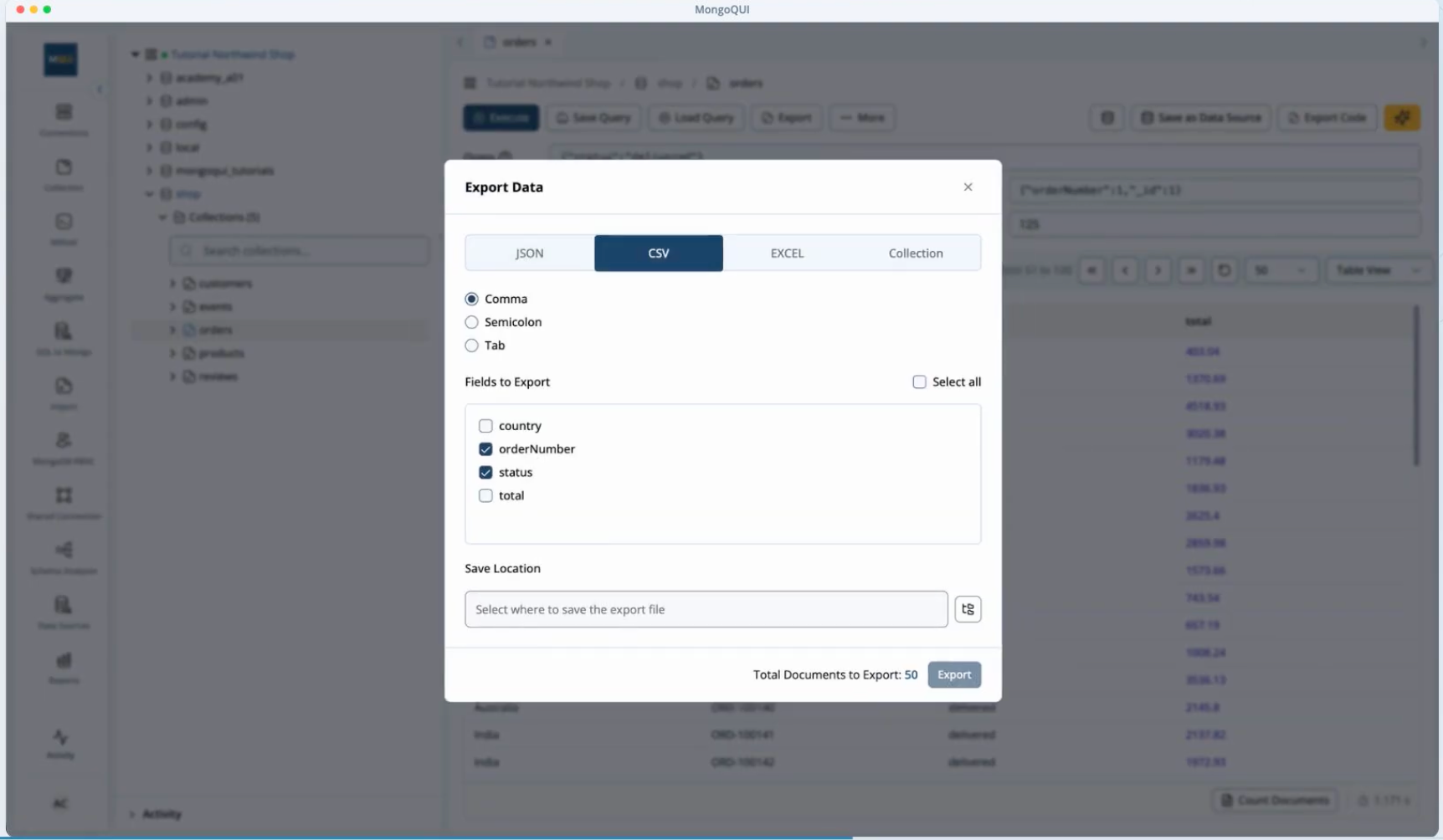
CSV is useful for exchanging rows and columns between spreadsheet tools and other systems. The video demonstrates exporting the active page as CSV, a helpful example of a deliberately limited extract.
When you open the file, check the headers and a few representative rows. Make sure values appear under the intended columns, especially where the data contains commas, line breaks, or complex values.
Excel: for reviewing data in a workbook
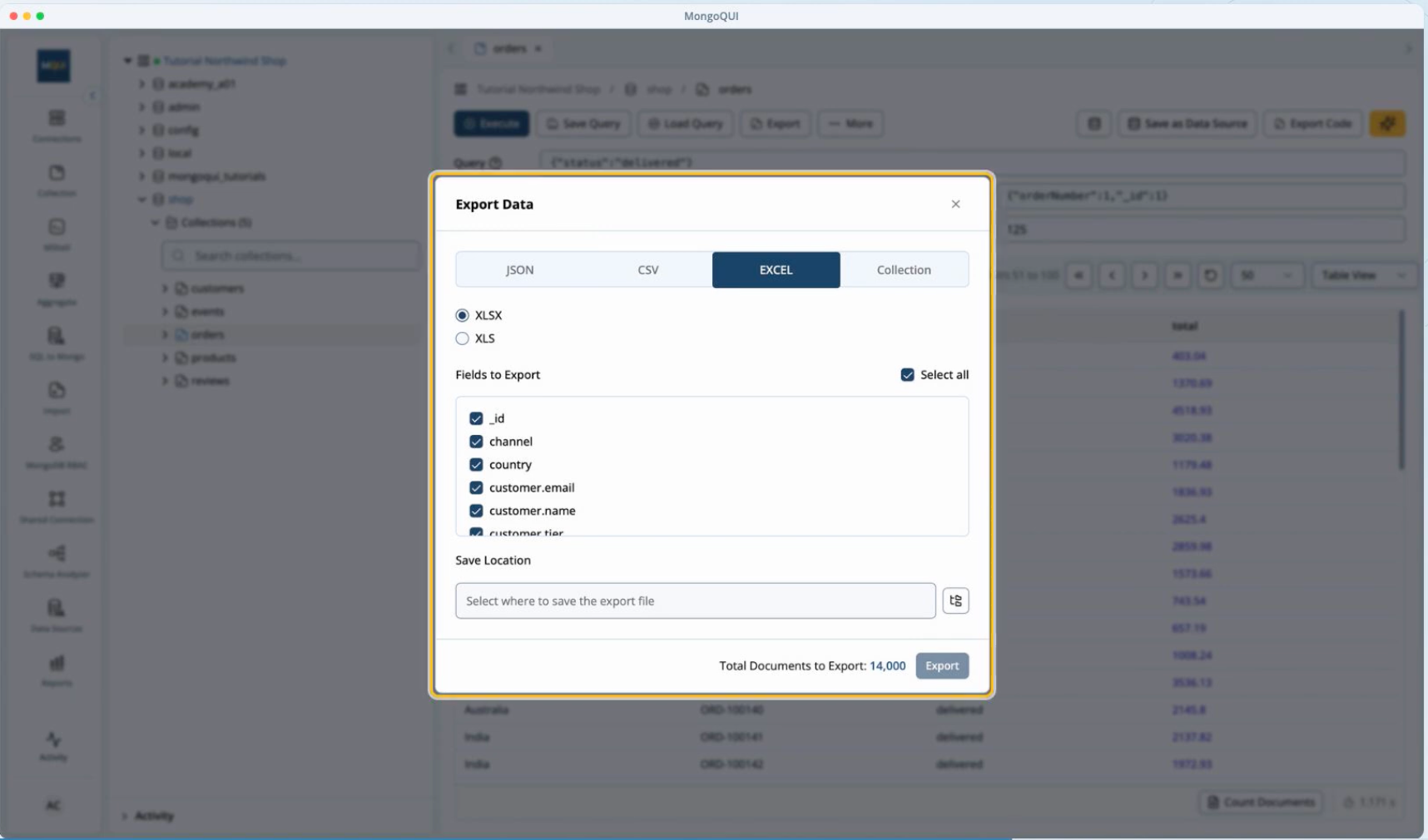
Choose Excel when the recipient wants an .xlsx file for spreadsheet review. The tutorial demonstrates exporting the collection in this format.
The file format and export scope are separate choices. Choosing Excel determines the output type; choosing the collection determines which records you request.
After opening the workbook, check the column names and displayed values. Pay particular attention to dates, identifiers, and numbers before using the file for calculations.
4. Save the file and follow progress in Activity
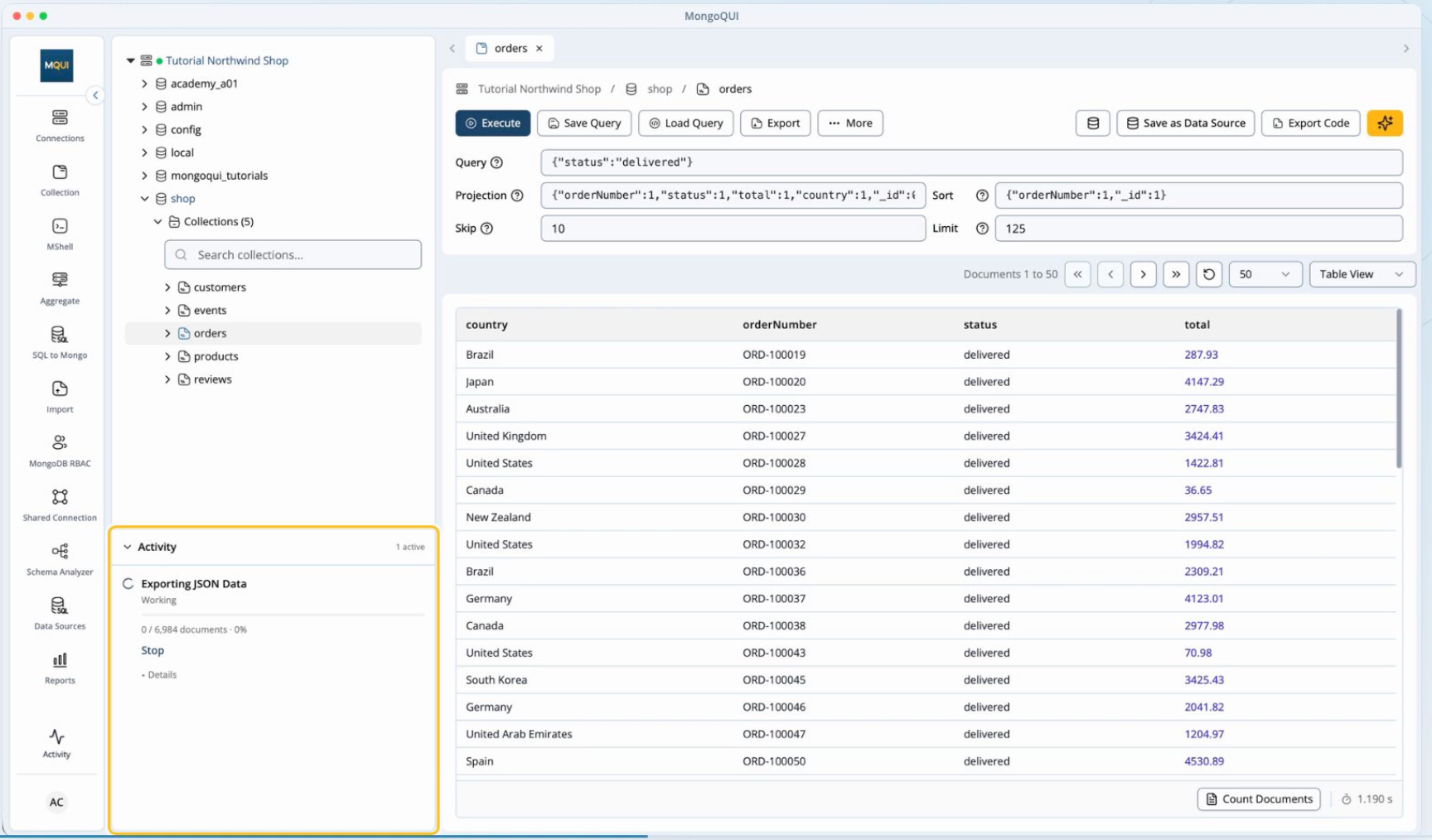
Once the scope, fields, and format are correct, start the export and follow its progress in Activity, as shown in the tutorial.
MongoQUI’s documentation describes different file destinations depending on how you use the app. On desktop, you can choose the save folder. In the web version, the file downloads to the browser’s default downloads folder after confirmation in the task progress dialog.
Use a filename that explains the contents. For example, completed-orders-west-2026-10.csv is easier to identify later than export.csv.
Wait for the export to finish, then open the saved file. A completed task is the point to begin checking the output.
5. Verify the export before sharing it
A short review helps catch the mistakes that matter most:
Scope: Does the file represent the collection, all query matches, or only the current page you intended?
Record count: Is the number of exported records consistent with that scope? For CSV and Excel, distinguish the header from data rows.
Fields: Are the selected fields present, with understandable headers where applicable?
Values: Do a few sample records agree with what you reviewed in MongoQUI?
Format: Does the file open correctly in the application the recipient will use?
If the numbers differ, investigate the scope and query settings before relying on the file. If data changed between running the query and exporting it, consider whether that change explains the difference.
When sharing a current-page extract, include a short note such as: “This file contains the page reviewed during the investigation.” That context prevents a sample from being mistaken for a complete dataset.
Make the next handoff easier
A useful MongoDB export carries a clear answer: which records it contains, which fields were selected, and how the file was checked.
For a one-time review, JSON, CSV, or Excel may be all you need. If the same question returns every week, consider saving the query or exploring MongoQUI’s reusable data-source workflow so the next investigation starts with a defined question.
Try the process with a small dataset first: execute a filter, export the scope you intend, and compare the saved records with your results. Once those agree, you have a file you can share with confidence.
Watch the full MongoQUI export walkthrough to follow the scope, field-selection, Activity, and verification steps.
Related posts.

How to Build a Better MongoDB Report With AI Suggestions in MongoQUI
Your product team asks a simple question: which categories have the highest average rating? The data is available, but turning it into a useful report takes several decisions. You need to choose the right dataset, define the average, build the query, and present the result clearly enough for someone else to use. MongoQUI’s AI Suggestions can help you get started. They give you proposed report blocks and queries to review, so you can spend more time checking the answer and improving the report.
Introducing MongoQUI: From MongoDB Data to Answers Your Team Can Use
From exploring MongoDB documents to sharing an answer your team can use. “Which orders still need attention?” The answer is in MongoDB. Getting it into your team’s hands is where the work begins. Someone needs to inspect the records, write the query, check what the numbers mean, and turn the results into something another person can act on. A straightforward question becomes a chain of exports, spreadsheets, and follow-up messages. When someone asks for updated numbers, that chain starts again. We built MongoQUI to make that journey easier: from understanding your MongoDB data to sharing an answer your team can use again. MongoQUI is a MongoDB GUI and workspace that brings database exploration, visual query building, aggregation pipelines, and reporting together. You can investigate a question, build the logic behind the answer, and turn the results into a report within the same workspace. It is built for developers who work with MongoDB, analysts who need to understand its document
MongoQUI Review: The Smarter MongoDB GUI Built for Modern Developers
If you've ever found yourself wrestling with raw shell commands just to inspect a collection or debug an aggregation pipeline, you already know the pain that MongoQUI was built to solve. In a market crowded with aging desktop clients and overly complex IDEs, MongoQUI arrives as a breath of fresh air — a powerful, intuitive MongoDB GUI designed specifically for developers and data analysts who want speed without sacrificing capability.
Get shipping updates once a month.
A monthly digest of what shipped, what’s coming, and one long-form post we loved. Unsubscribe in one click.
By subscribing you agree to receive monthly updates from MongoQUI. See our Privacy Policy.